
Users and roles: who sees what
Give each person their own account and a role that fits their work — a manager, an accountant or another — and limit them to their branches if needed.
- Reading time
- 3 min read
- Steps
- 5 steps
- Level
- Intermediate
- Updated
- Updated November 1, 2026
Everyone who works in the program has their own account. The role decides what they can see and do: attendance, leave, payroll or settings. Everything they do is recorded in the activity log under their name.
1The Super Admin
The first account you created at installation is the “Super Admin”: it holds every permission, activates the licence, adds users and roles, and is the only one who can delete data. Keep its password somewhere safe.
2Add a user and choose their role
From the users and roles screen add a new user with their name and a password, and choose their role. The program comes with ready roles for the usual jobs in a company, such as the manager and the accountant.
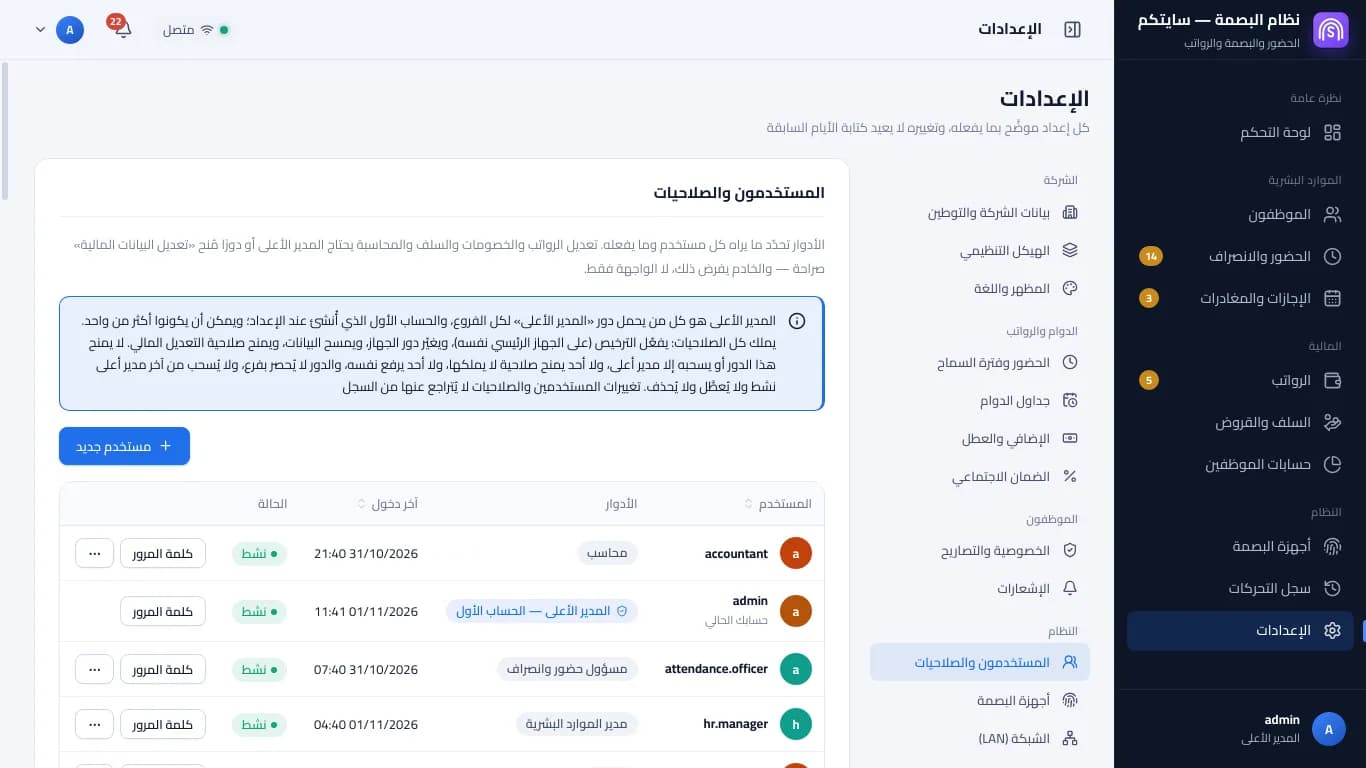
Users and roles, including roles limited to one branch · Arabic interface 3The second manager and the accountant
The second manager runs the daily work but doesn't get the sensitive permissions automatically. The accountant role is for the money side. Changing money matters stays with the Super Admin. Check each role's permissions in the roles editor before you give it to someone.
4Adjust a role's permissions
Open a role to see its permissions and add or remove what you want. No one can grant a permission they don't hold themselves. To go back to what we suggest for the role, press “Apply the suggested template” and confirm.
5Limit a user to their branch
If the company has more than one branch, set each user's branches. Someone whose roles are for specific branches sees only those branches' employees; if they try to open another, “This is outside your branch” shows.
FAQ
Yes, from the roles editor, then choose its permissions.
Contact the Sitekoom team to help you get back in.
