
Activate Sitekoom Attendance: the installation code and a second computer
Copy the installation code, subscribe, paste the activation code in “Licence and subscription”, then pair other computers.
- Reading time
- 3 min read
- Steps
- 5 steps
- Level
- Beginner
- Updated
- Updated November 1, 2026
The licence is tied to the main computer where you installed the program. Activation is done on that main computer itself, with a “Super Admin” account.
1Open “Licence and subscription” and copy the installation code
In the program open the “Licence and subscription” screen and press “Copy” next to the “Installation code”. This code identifies your computer.
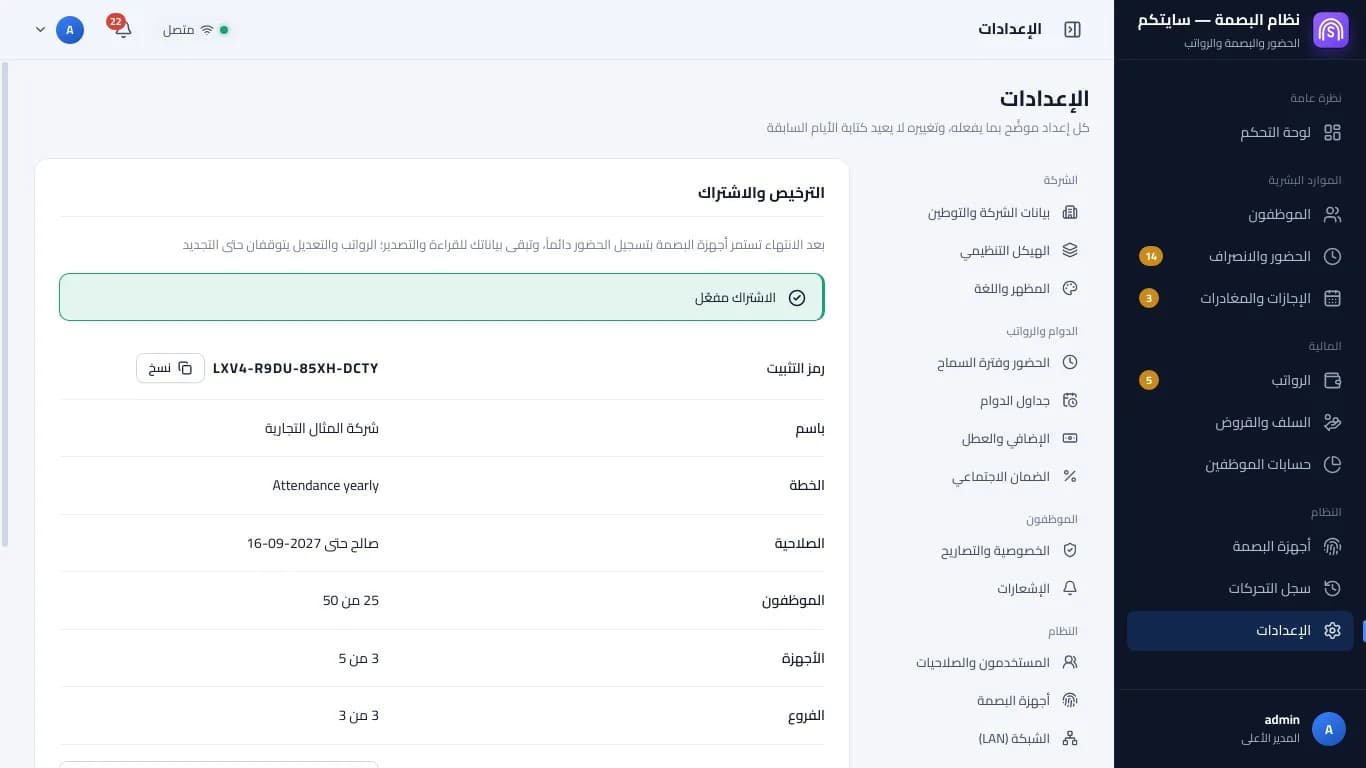
The «Licence and subscription» screen: the subscription, its limits and the installation code (a demo code) · Arabic interface 2Subscribe from the Sitekoom Attendance page
Press “Subscribe” on the same screen or on the Sitekoom Attendance page, paste the installation code in the subscription step, and choose the number of employees, devices and branches.
Each extra computer in the company counts as a device, like a fingerprint device. The main computer doesn't count.
3Paste the activation code
The activation code arrives in your customer portal. Copy it whole, paste it in “Paste the activation code here” in “Licence and subscription”, then press “Activate”. “Subscription activated” shows with your name, the expiry date and the limits.
The activation code is for your computer only. If “This code is for another computer” shows, make sure you sent the installation code shown on this computer.
4Add a second computer
On the main computer open “Add a computer” and a “Pairing code” shows. Install the program on the other computer, choose that it is a secondary computer, type the code within 10 minutes, then check that the short set of characters the program shows is the same on both computers — that makes sure you're connecting to your company's computer.
A secondary computer keeps nothing itself: everything you enter is saved on the main computer, so the main one must be on.
5Renewing and raising the limits
Before the subscription ends, “Your subscription ends in N days” shows. Renew from “Renew” in “Licence and subscription” or from your portal. To raise employees, devices or branches, request more, then paste the new code on the same screen.
FAQ
No. The program checks its subscription when it connects, and nothing stops without the internet.
Fingerprint devices keep recording attendance and your data stays readable and exportable; payroll and editing pause until you renew.
