
“Start work”: the day attendance starts counting
Set up your employees and try the fingerprints freely, then choose the day counting starts.
- Reading time
- 3 min read
- Steps
- 5 steps
- Level
- Beginner
- Updated
- Updated November 1, 2026
Whatever the device records before the counting start day is kept, but no absence, lateness or deduction is counted for it.
1Add employees and try the fingerprints
As long as no counting start day is set, a banner on the dashboard reminds you that counting hasn't started. Add employees, link them to the device and try the fingerprints.
2Press “Start work”
From the banner press “Start work”, then choose “From which day does counting start?”: “Today”, “Tomorrow” or another date, or “Count every day”.
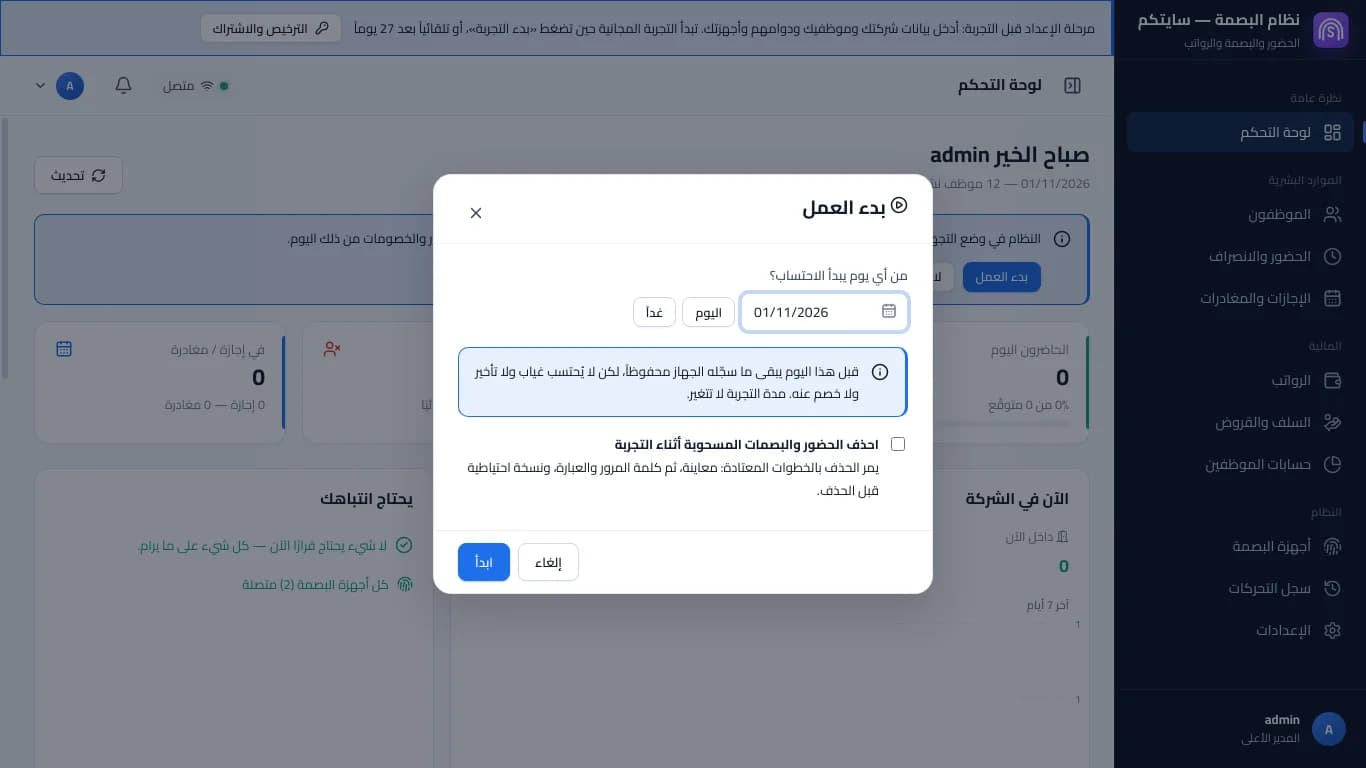
The «start work» window: choosing the day attendance starts to count · Arabic interface 3Before that day
Whatever the device recorded before the start day is kept and shows its real time, with no absence, lateness or deduction counted for it. The same goes for days before each employee's hiring date.
4Changing the day later
You can change the counting start date from Settings → Attendance and grace, with the money permission. The change is refused if it touches days inside an approved or paid payroll period.
5Delete the trial punches (optional)
In the “Start work” window you can choose to delete the attendance and punches pulled during the trial. The deletion goes through its usual steps: a preview, then your password and the phrase, with a backup first.
