
Several registers on the store network
One main device and registers paired with an 8-digit code over an encrypted link.
- Reading time
- 2 min read
- Steps
- 6 steps
- Level
- Advanced
- Updated
- Updated October 10, 2026
The POS interface is in Arabic; screenshots and button names are shown as they appear in the app, with English explanations.
The main device holds the database and the other registers work on the same data directly: one stock, prices and users, nothing to merge.
1Make the first PC the main device
On the PC with the data: “Network & devices” → “Make this the main device”.
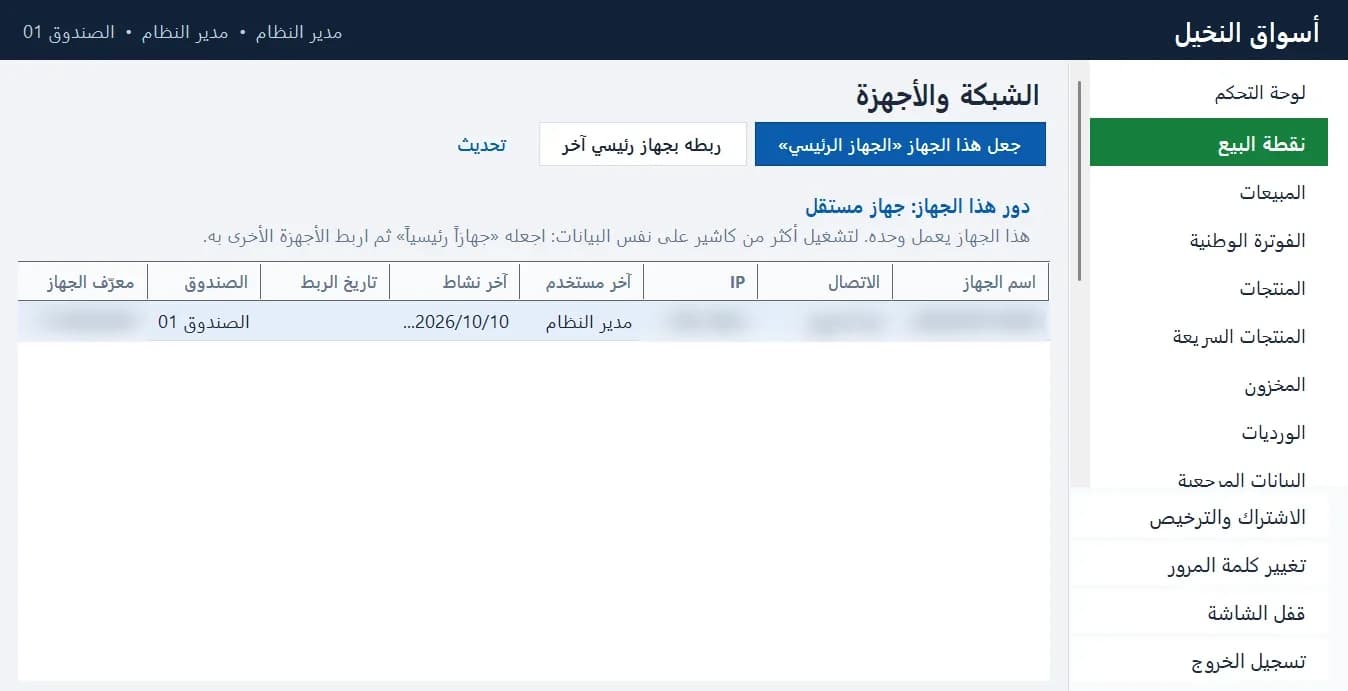
Network & devices: make this the main device and pair registers (computer name and IP blurred) · Arabic interface 2Create a pairing code
Click “Create pairing code”: an 8-digit code valid for 10 minutes and a security fingerprint appear.
3On the register
Install the same setup, choose “Join the store's main device” on first start, then pick the main device or type its address.
4Compare the fingerprint and enter the code
Check that the fingerprint matches on both screens, then enter the code. 5 wrong attempts invalidate it.
Paired devices count against your plan's device limit.
5Keep the main device running
Keep the POS open on the main device (it can be minimized). If it's unreachable, registers show an alert and keep the cart until it's back.
6Un-pair a device
For a sold or broken device use “Un-pair the selected device” or deactivate it under Devices; it stops immediately.