
Barcodes, weighed products and scale labels
Sell cheese and produce by weight and read scale labels without guessing.
- Reading time
- 3 min read
- Steps
- 5 steps
- Level
- Intermediate
- Updated
- Updated October 10, 2026
The POS interface is in Arabic; screenshots and button names are shown as they appear in the app, with English explanations.
Every product is either UNIT or WEIGHT. A weighed product sells a decimal quantity, and scale labels carrying the price or weight inside the barcode can be read.
1Create a weighed product
In the product editor choose “Product type: weighed”. The weight section appears: unit (kg or g), price basis (e.g. per 100 g), precision, min/max, and whether manual or scale weights are allowed.
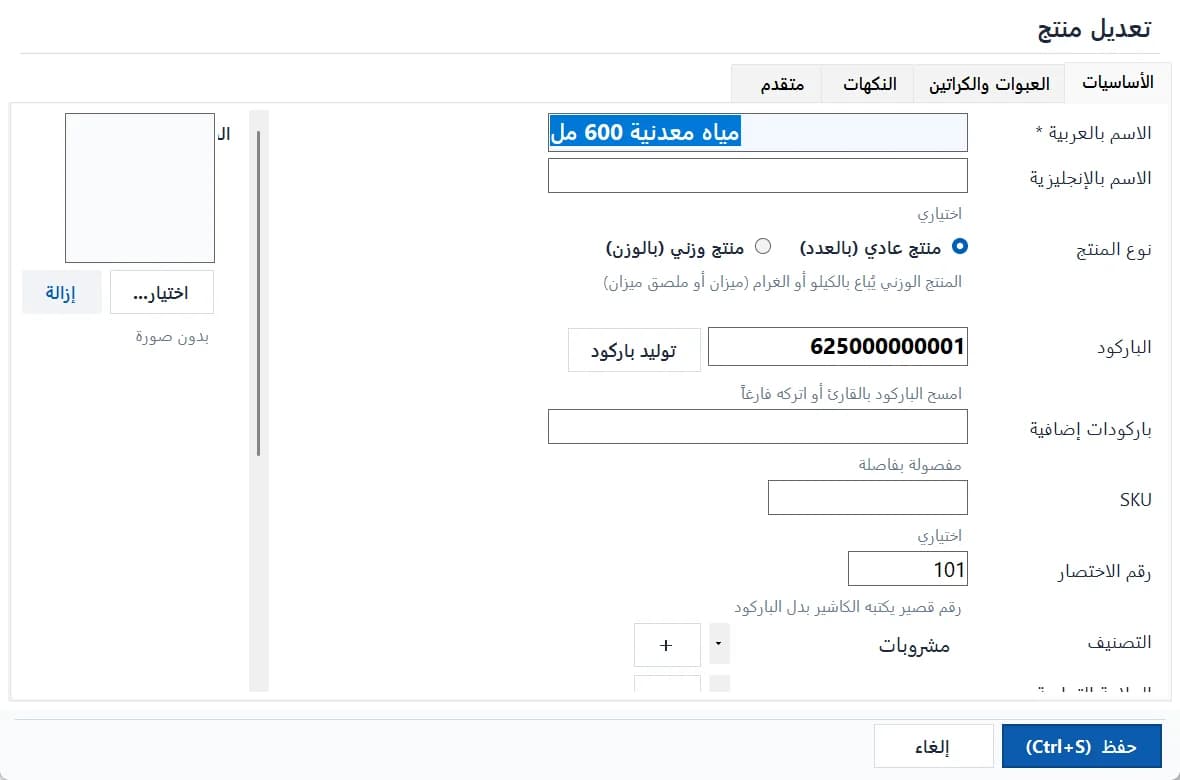
The product editor: units, prices, barcodes and selling mode · Arabic interface 2Scale code (PLU)
Enter the code the scale prints inside its labels. It must be unique; leading zeros are ignored.
3Set the scale barcode layout
In Settings → Products & weight → Scale barcode: price-embedded or weight-embedded, prefixes (e.g. 20,21), total length, product-code length, value digits and decimals. The page explains the layout with an example and validates it live.
4Rules that detect weighed products
“Weight product rules” set the type automatically from the barcode, name or category (starts with, contains, regex…) with a fixed priority, and a “Test” button to try any value.
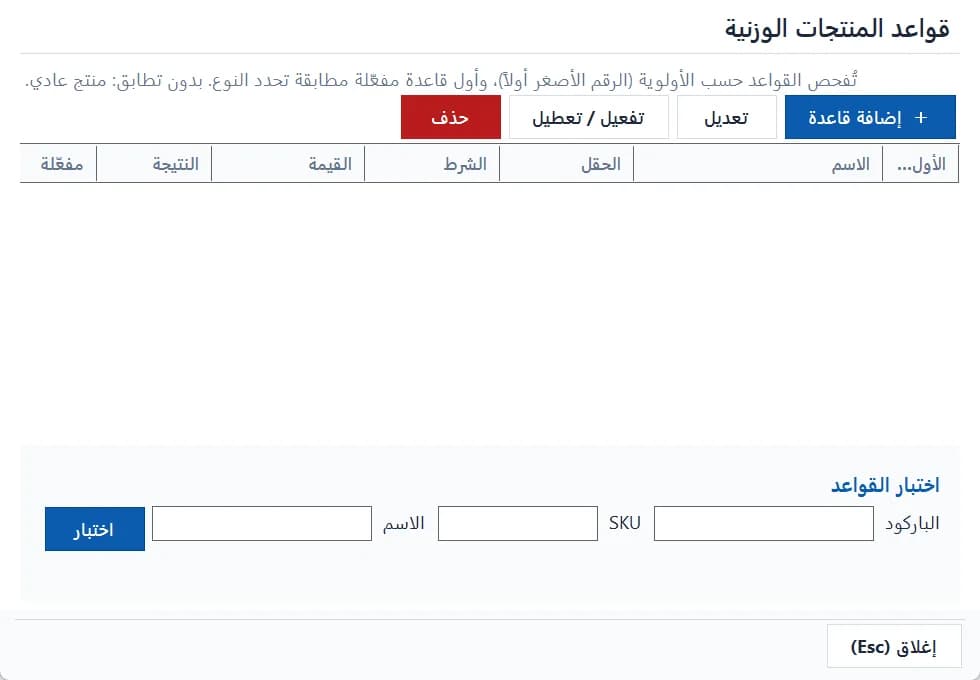
Rules that detect weighed products automatically · Arabic interface 5Selling by weight at the register
Scan the scale label and the line is added at exactly the printed price (⚖), or pick the product and type the weight within the allowed precision and range.
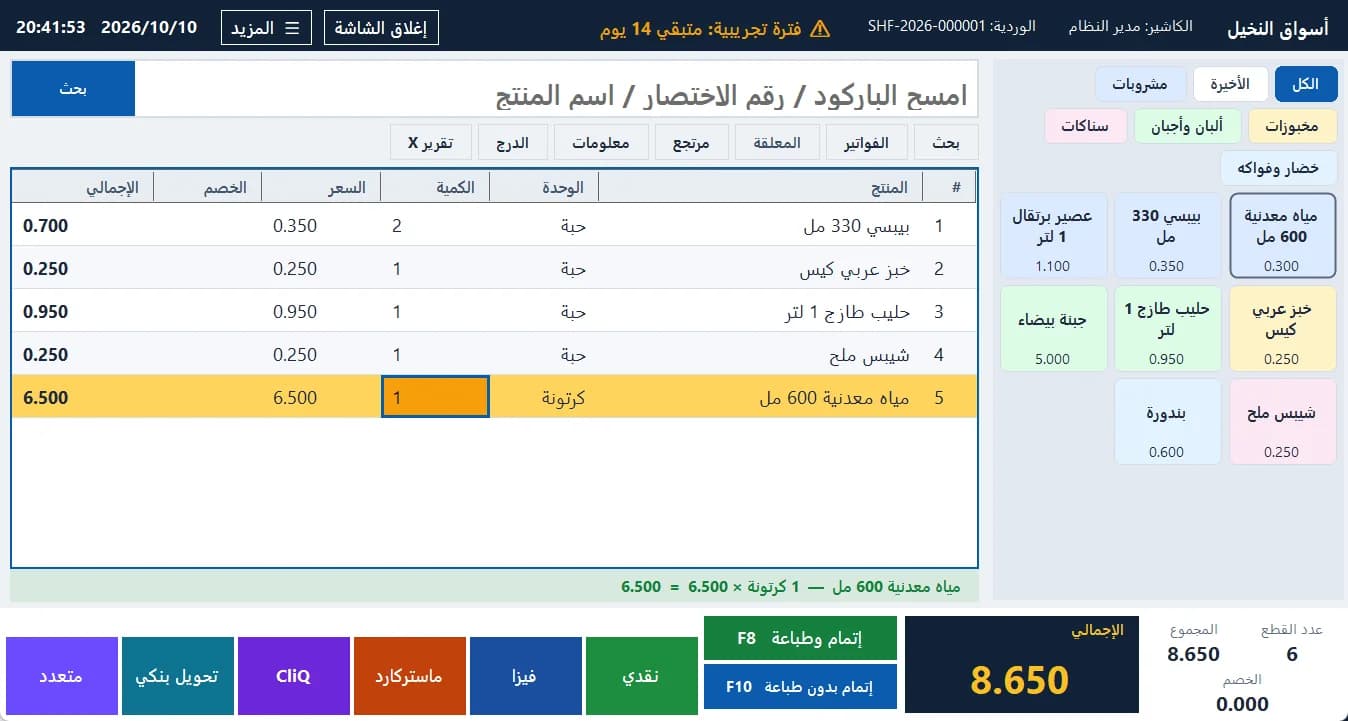
The supermarket cashier screen: barcode cart, units and cartons, payment buttons · Arabic interface
FAQ
The POS never guesses: “Unable to determine weight barcode” appears and the cashier searches manually. Check the layout in Settings and test it with a real label.