
Importing products from Excel
A 5-step wizard with a preview and an error report before anything changes.
- Reading time
- 3 min read
- Steps
- 6 steps
- Level
- Intermediate
- Updated
- Updated October 10, 2026
The POS interface is in Arabic; screenshots and button names are shown as they appear in the app, with English explanations.
Excel import adds and updates hundreds of products at once. Nothing is saved until you click “Import”, and on any error nothing changes.
1Open the wizard
In Products click “Import / export Excel”, then “Import”.
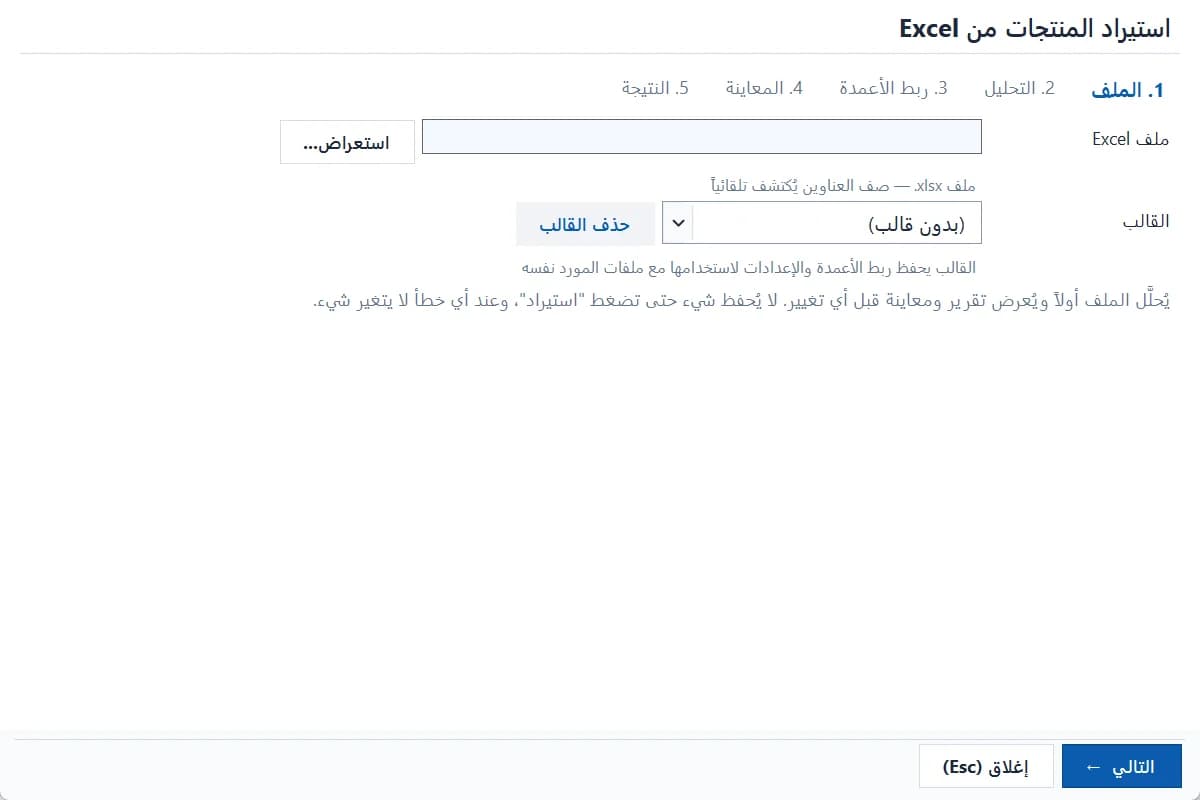
The five-step Excel product import wizard · Arabic interface 21. The file
Pick an .xlsx file. The header row is detected automatically. You can choose a saved template for the same supplier's files.
32. Analysis and 3. Column mapping
Map each column to a field: name, barcode, price, cost, category, quantity… You can also map a product-type column (UNIT/WEIGHT or the Arabic words) and a scale PLU column.
4How are weighed products detected?
Choose: product-type column, then the rules, then UNIT (recommended default); or the column only; or the rules only; or all products UNIT.
54. Preview
Each row shows the detected type and why, and errors before importing: unreadable type, a unit that can't hold a weight, a scale code owned by another product…
65. Result
The import is one transaction: it fully succeeds or nothing changes. Export the error or full report to review it.
Save the mapping as a template to save time with the supplier's next files.