
Opening your store admin from Sitekoom
Secure one-click access without a second password.
- Reading time
- 2 min read
- Steps
- 4 steps
- Level
- Beginner
- Updated
- Updated October 11, 2026
You own the store. Access goes through your Sitekoom account using a one-time code valid for a minute; your password and keys never travel in the URL.
1From “My stores”
In your portal open “My online stores” and press “Manage store”. If you aren't signed in you'll be asked to, then brought back automatically.
2From the store's login page
The store admin's login page has a “Sign in with Sitekoom” button that performs the same secure sign-in.
3The dashboard
Shows sales, recent orders and alerts, and leads to products, orders, customers and settings.
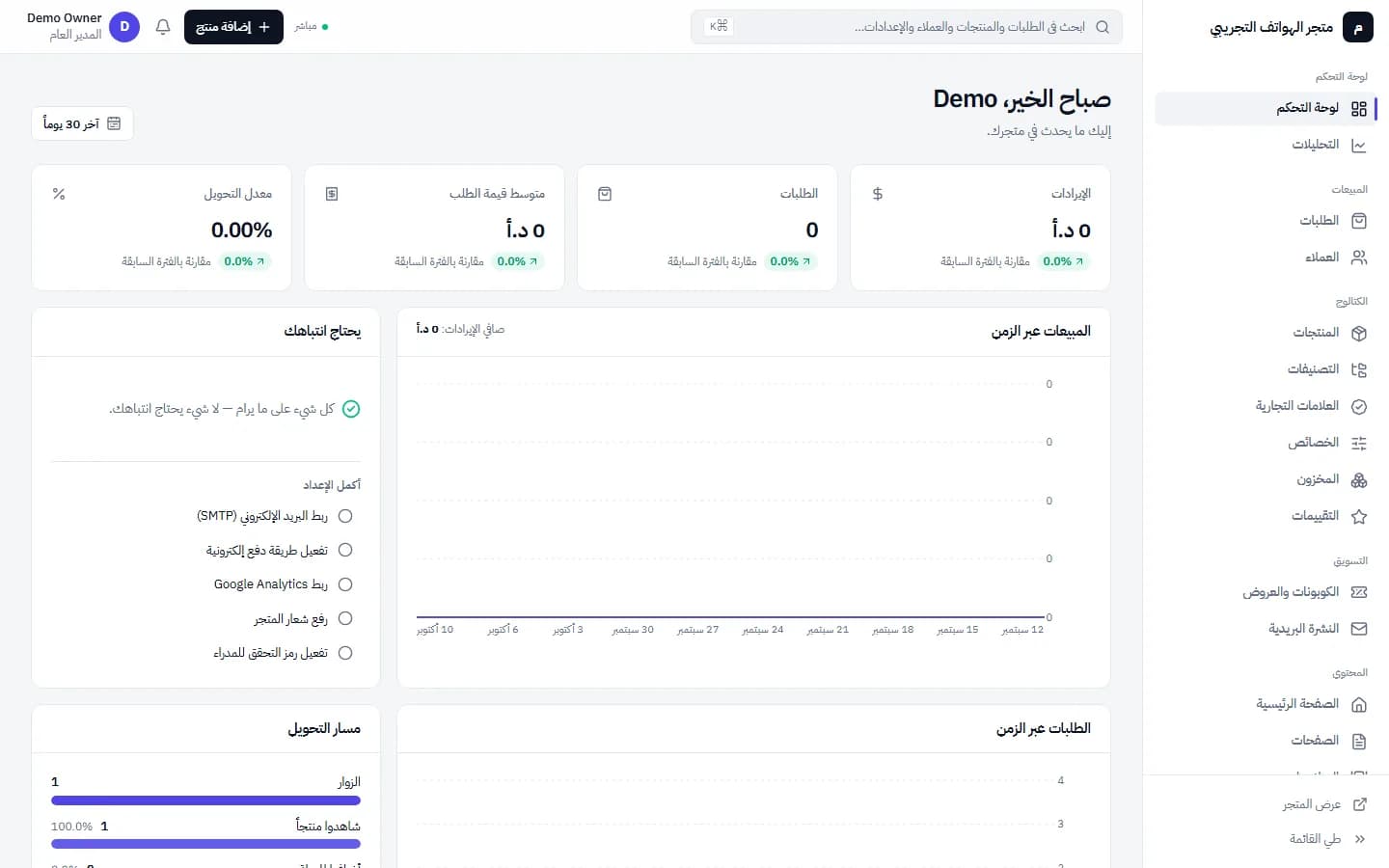
The store admin after signing in from Sitekoom: metrics and the “finish setup” checklist · Arabic interface 4Adding staff
From “Staff” in the store admin add employees with specific permissions; they have store-only accounts.